Seventh Task
Create an orbitable scene using textures
All code can be found on github, but the live version is also available on Codepen(which fails to load the texture!).You may see a live demo at my webpage.
This proyect was done with help from task 5: Camera Changes and WebGLFundamentals.
Textures are pretty simple. You have an image, and you map the colors of the image into points on your object. Think of it as dropping a sheet rather than painting on the object.
Now, we've been doing this but mapping colors to each of the points in the figure. In order to use the texture we need to modify the Fragment Shader and Vertex Shader to replace the color for the textures:
<!-- vertex shader -->
<script id="3d-vertex-shader" type="x-shader/x-vertex">
   attribute vec4 a_position;

   attribute vec2 a_texcoord;

   uniform mat4 u_matrix;

   varying vec2 v_texcoord;

   void main() {
     // Multiply the position by the matrix.
     gl_Position = u_matrix * a_position;

     // Pass the texcoord to the fragment shader.
     v_texcoord = a_texcoord;
   }
  </script>
  <!-- fragment shader -->
  <script id="3d-fragment-shader" type="x-shader/x-fragment">
  precision mediump float;

  // Passed in from the vertex shader.
  varying vec2 v_texcoord;

  // The texture.
  uniform sampler2D u_texture;

  void main() {
    gl_FragColor = texture2D(u_texture, v_texcoord);
  }
  </script>
The varyingwill move us along the texture coordinates (often called Texels) fom 0 to 1. Also, now the Fragment Shader will receive a fragment color composed from the texture and the coordinates.
Now, in the Javascript file, we need to create the texture and bind it to the figure.
    var texture = gl.createTexture();
    gl.bindTexture(gl.TEXTURE_2D, texture);

    // Fill the texture with a 1x1 blue pixel, in case the image is not there yet
    gl.texImage2D(gl.TEXTURE_2D, 0, gl.RGBA, 1, 1, 0, gl.RGBA, gl.UNSIGNED_BYTE,
        new Uint8Array([0, 0, 255, 255]));
    var image = new Image();
    image.src = "./basketball.png";
    image.addEventListener('load', function () {
        // Now that the image has loaded make copy it to the texture.
        gl.bindTexture(gl.TEXTURE_2D, texture);
        gl.texImage2D(gl.TEXTURE_2D, 0, gl.RGBA, gl.RGBA, gl.UNSIGNED_BYTE, image);
        gl.generateMipmap(gl.TEXTURE_2D);
    });
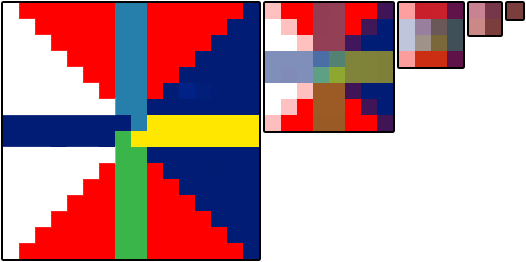
The part before the image call is a safety that paints the elements blue. Now, the last line hasn't been mentioned, but it helps a lot to speed up the painting. A mipmap is a smaller texture that helps the program save time calculating the average of the pixels.
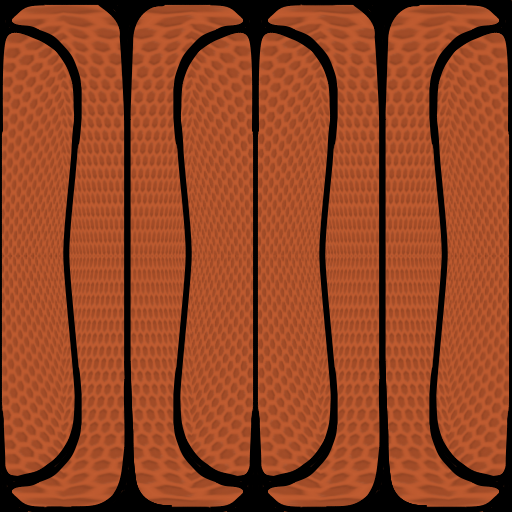
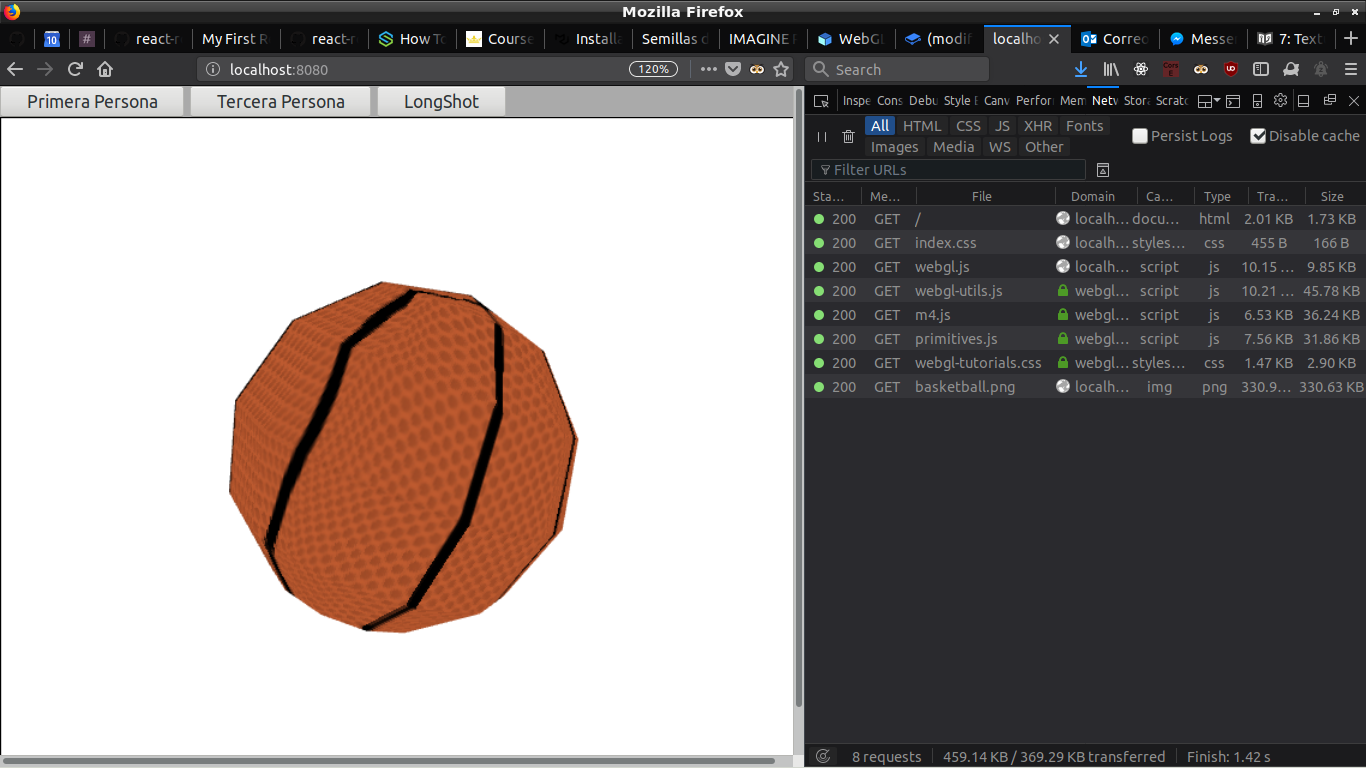
The texture I used, against the professor's instructions was a basketball. It now looks weird but as soon as it wraps around an sphere it will look like a basketball.